
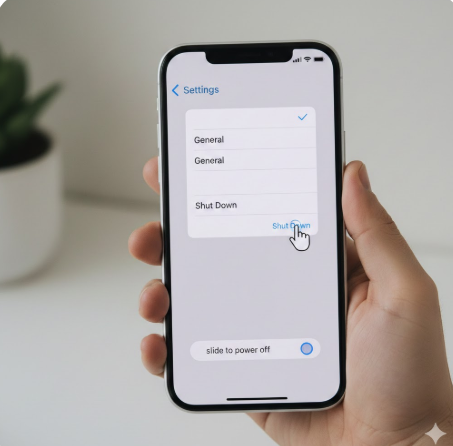
Knowing how to turn off iPhone might seem simple, but Apple has changed shutdown methods multiple times across iPhone generations. Whether you’re using a Face ID iPhone’s, an older Home Button model, or dealing with a frozen screen, understanding the correct way to power off your iPhones is essential for troubleshooting, saving battery, or performing maintenance.
This in-depth guide explains every possible way to turn off an iPhone, including physical buttons, on-screen settings, Siri, and accessibility options. You’ll also learn what to do if your iPhones won’t turn off, plus expert tips backed by real-world experience and Apple-recommended practices.
Why You Should Know How to Turn Off an iPhone
Turning off your iPhone’s isn’t just about powering down. It plays a role in:
- Improving performance after long usage
- Fixing minor software glitches
- Saving battery during travel
- Preparing for iOS updates
- Protecting privacy and security
- Resetting network or system issues
According to Apple support documentation, restarting or powering off an iPhone’s resolves a large percentage of temporary system issues without requiring repairs or resets.
How to Turn Off iPhone Using Physical Buttons
How to Turn Off iPhones (Face ID Models)
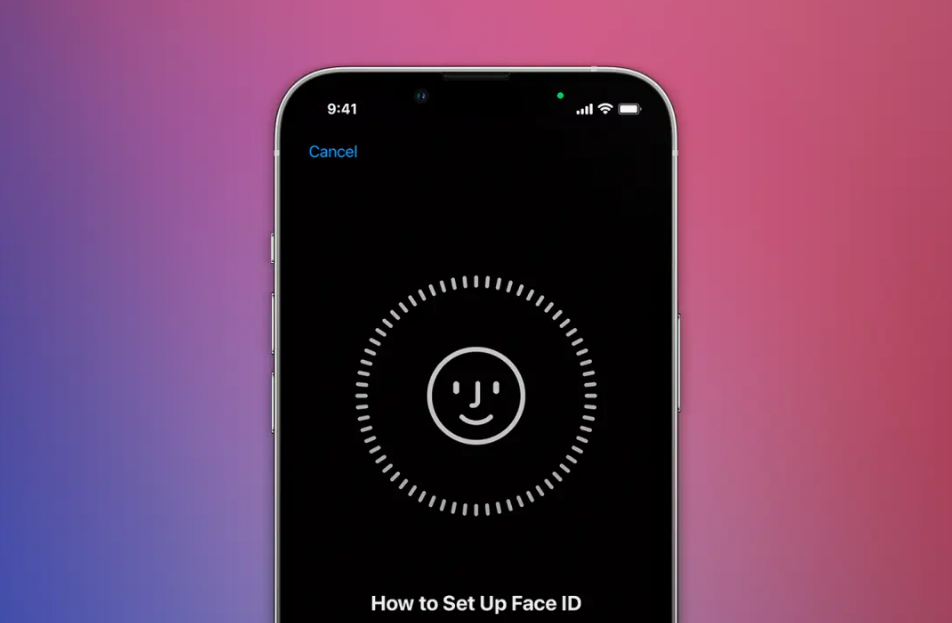
Applies to:
- iPhone X, XR, XS
- iPhone 11, 12, 13, 14, 15 series
Steps:
- Press and hold the Side button (right side)
- At the same time, press and hold either Volume button
- Wait until the “slide to power off” screen appears
- Drag the power slider to the right
- Your iPhone’s will shut down within seconds
✅ Expert Tip: Releasing the buttons too early activates Siri instead of the power menu. Hold them firmly for 2–3 seconds.
How to Turn Off iPhone (Home Button Models)
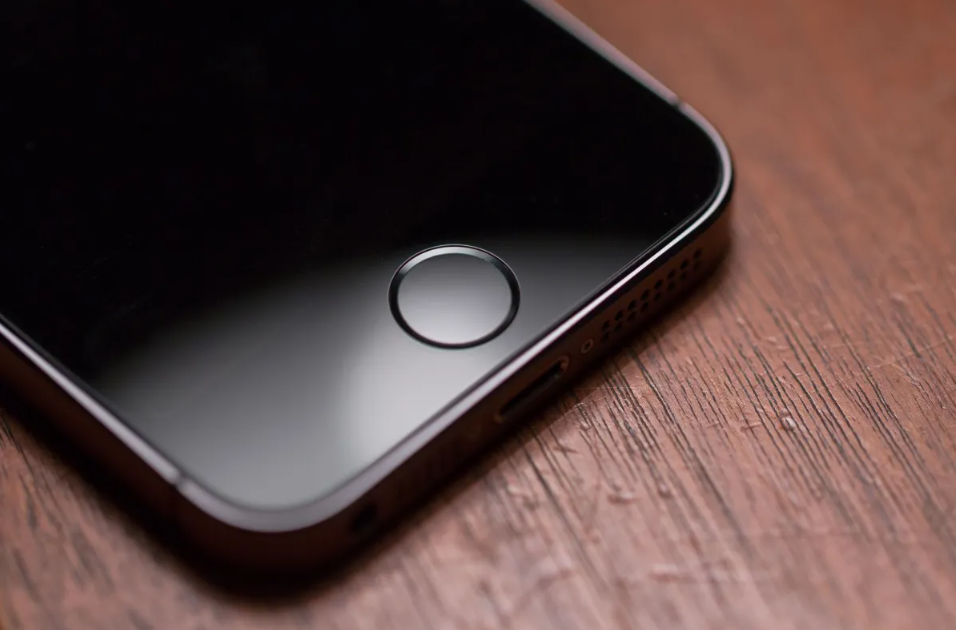
Applies to:
- iPhone SE (1st & 2nd gen)
- iPhone 6, 6s, 7, 8 series
Steps:
- Press and hold the Power (Side or Top) button
- Wait for the power off slider
- Slide to turn off your iPhone
This method remains the simplest for older iPhones.
Also Read: Melanie From CraigScottCapita: Facts, Context & Insights
How to Turn Off iPhone Without Buttons (Using Settings)
If your buttons are broken or unresponsive, Apple provides a built-in software option.
Steps to Turn Off iPhone from Settings:
- Open Settings
- Tap General
- Scroll down and select Shut Down
- Slide the power icon to turn off
This method works on all modern iOS versions and is officially recommended by Apple for accessibility needs.
How to Turn Off iPhone Using Siri
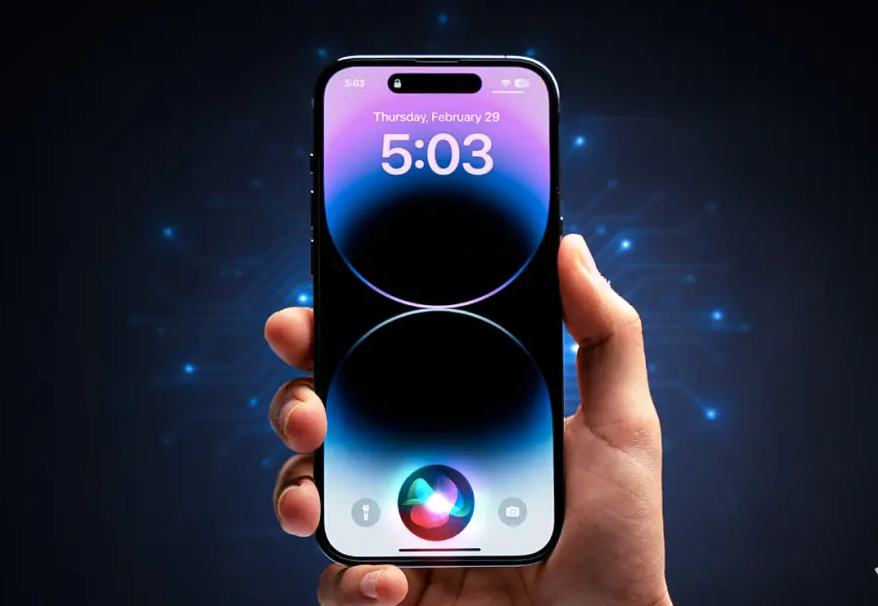
Apple’s virtual assistant can now power off your iPhone’s hands-free.
Steps:
- Say “Hey Siri” or press the Siri button
- Say “Turn off my iPhone”
- Confirm when prompted
📌 Important: Siri asks for confirmation to prevent accidental shutdowns.
How to Turn Off iPhone Using AssistiveTouch
AssistiveTouch is an accessibility feature designed for users who have difficulty using physical buttons.
Enable AssistiveTouch:
- Go to Settings → Accessibility
- Tap Touch
- Select AssistiveTouch
- Turn it on
Turn Off iPhone Using AssistiveTouch:
- Tap the AssistiveTouch floating button
- Select Device
- Press and hold Lock Screen
- Slide to power off
This method is ideal if your power or volume buttons are damaged.
How to Force Turn Off iPhone (If It’s Frozen)
Sometimes an iPhone’s becomes unresponsive and won’t shut down normally. In this case, you need a force restart.
Force Restart iPhone (Face ID Models)
- Press Volume Up quickly
- Press Volume Down quickly
- Press and hold the Side button
- Release when the Apple logo appears
Restart iPhone 7 / 7 Plus
- Hold Volume Down + Power button together
Force Restart iPhone 6s or Earlier
- Hold Home + Power button
Difference Between Turning Off and Restarting iPhone
| Action | What It Does |
|---|---|
| Turn Off | Completely shuts down the device |
| Restart | Powers off briefly, then turns back on |
| Force Restart | Reboots when the device is frozen |
Knowing how to turn off iPhone properly helps avoid unnecessary force restarts, which should only be used when needed.
When Should You Turn Off Your iPhone?
You should power off your iPhone’s when:
- Battery is draining unusually fast
- Apps are crashing repeatedly
- iPhone is overheating
- Preparing for airplane travel
- Not using the device for long periods
- Installing major iOS updates
Experts recommend shutting down your phone at least once a week to clear temporary memory and improve stability.
Common Problems When Turning Off iPhone’s (And Solutions)
iPhone Won’t Turn Off
- Use Settings → Shut Down
- Try force restart
- Update iOS to the latest version
Power Button Not Working
- Enable AssistiveTouch
- Use Siri
- Shut down from Settings
Screen Is Frozen
- Perform a force restart
- Connect to a charger and try again
How to Turn iPhone’s Back On
To turn your iPhone’s back on:
- Press and hold the Side or Power button
- Release when the Apple logo appears
Your iPhone will boot normally.
iOS Versions and Shutdown Behavior
Apple has slightly adjusted shutdown behavior across iOS versions:
- iOS 11–12: Introduced Settings shutdown
- iOS 13+: Siri shutdown support
- iOS 15–17: Improved AssistiveTouch reliability
Staying updated ensures all shutdown options work smoothly.
Security and Privacy Benefits of Turning Off iPhone
When your iPhone’s is powered off:
- Face ID and Touch ID are disabled
- Encrypted data becomes inaccessible
- Tracking features stop temporarily
This is especially useful in high-security or travel situations.
Frequently Asked Questions (FAQs)
How do I turn off my iPhones without touching the screen?
You can use Siri by saying “Turn off my iPhones.”
Can turning off iPhones damage it?
No. Regular shutdowns are healthy and recommended.
How often should I turn off my iPhones?
At least once a week for optimal performance.
Why does my iPhones turn back on automatically?
This usually happens if the power button is stuck or the device is connected to a charger.
Is force restart the same as factory reset?
No. Force restart does not erase any data.
Conclusion: Mastering How to Turn Off iPhone’s
Understanding how to turn off iPhone is a basic yet essential skill every iPhone’s user should master. With multiple shutdown methods—buttons, settings, Siri, and AssistiveTouch—Apple ensures accessibility for all users and situations.
Whether you’re troubleshooting, conserving battery, or protecting your privacy, using the correct power-off method improves your iPhone’s performance and longevity. Bookmark this guide so you’ll always know exactly what to do—no matter which iPhone’s model you’re using.
